Satori Insights
Getting Started with Satori Insights

Insights helps you make the value of your coaching more visible. Instead of relying on memory or hurried notes, you get a clear record of the conversation, a transcript you can review afterward, and an Insights summary that highlights the themes, shifts, and moments that mattered most.
For coaches, that means less guesswork and more evidence. You can stay fully present during the session, come back to the transcript later, and use the resulting insights to reflect more deeply, prepare better follow-up, track client progress over time, and capture the breakthroughs that are often hardest to describe.
At a high level, the workflow is simple: make sure the session is scheduled, verify the meeting link, turn on recording, run the call, then review the transcript and insights after processing is complete.
Before using Insights, make sure you have a coaching session scheduled. In Satori, open Sessions, then select the session from the Upcoming list.
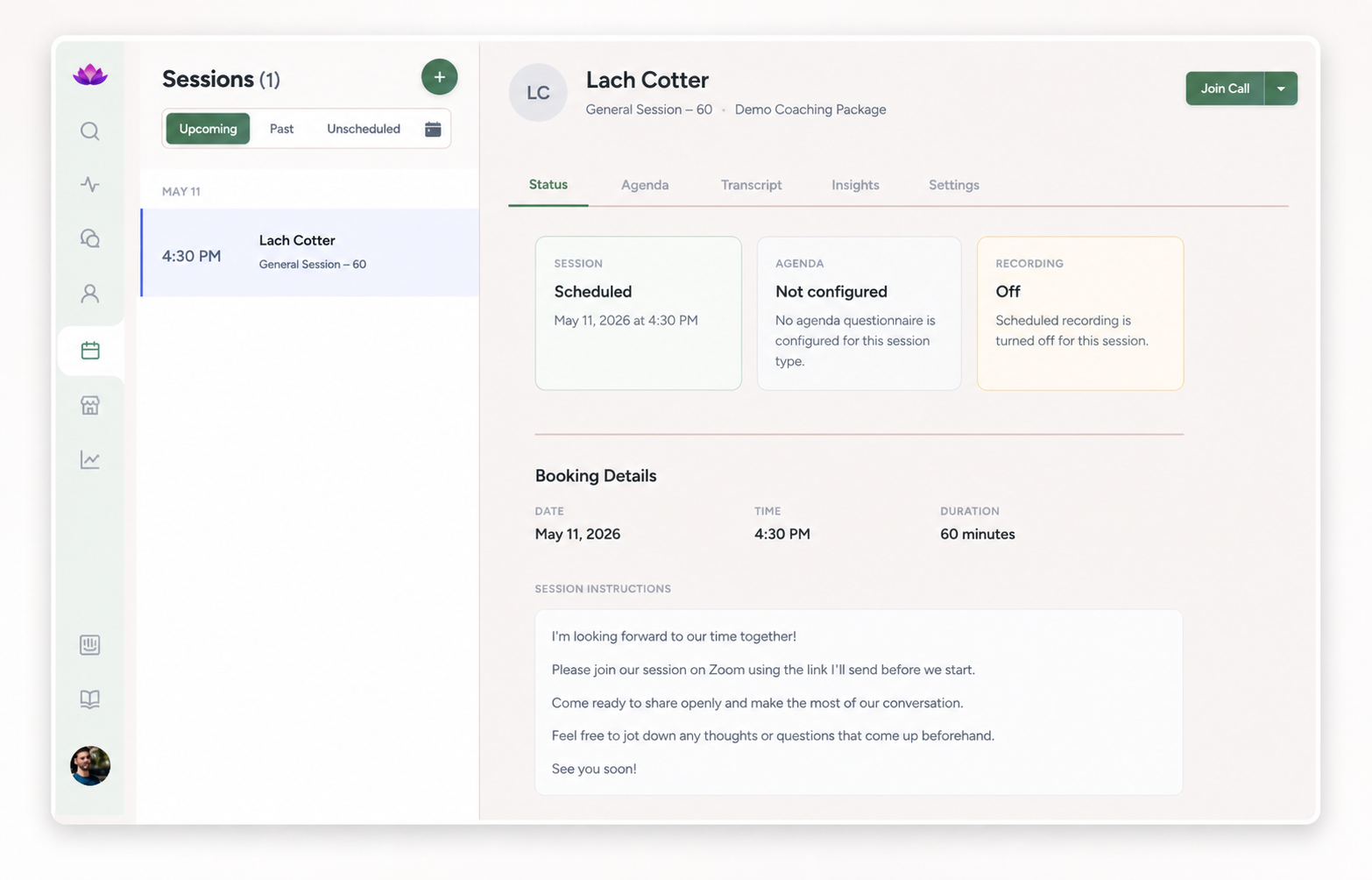
Open the Settings tab for the session and confirm that the call link is correct. This is the link you and your client will use to meet.
If the link does not look right, update it before you enable recording. Most coaches can rely on their usual default meeting link, but you can also set a different link for an individual session when needed.
Then turn on Session Recording. When recording is enabled, Satori schedules a notetaker bot to join the call automatically at the scheduled session time.
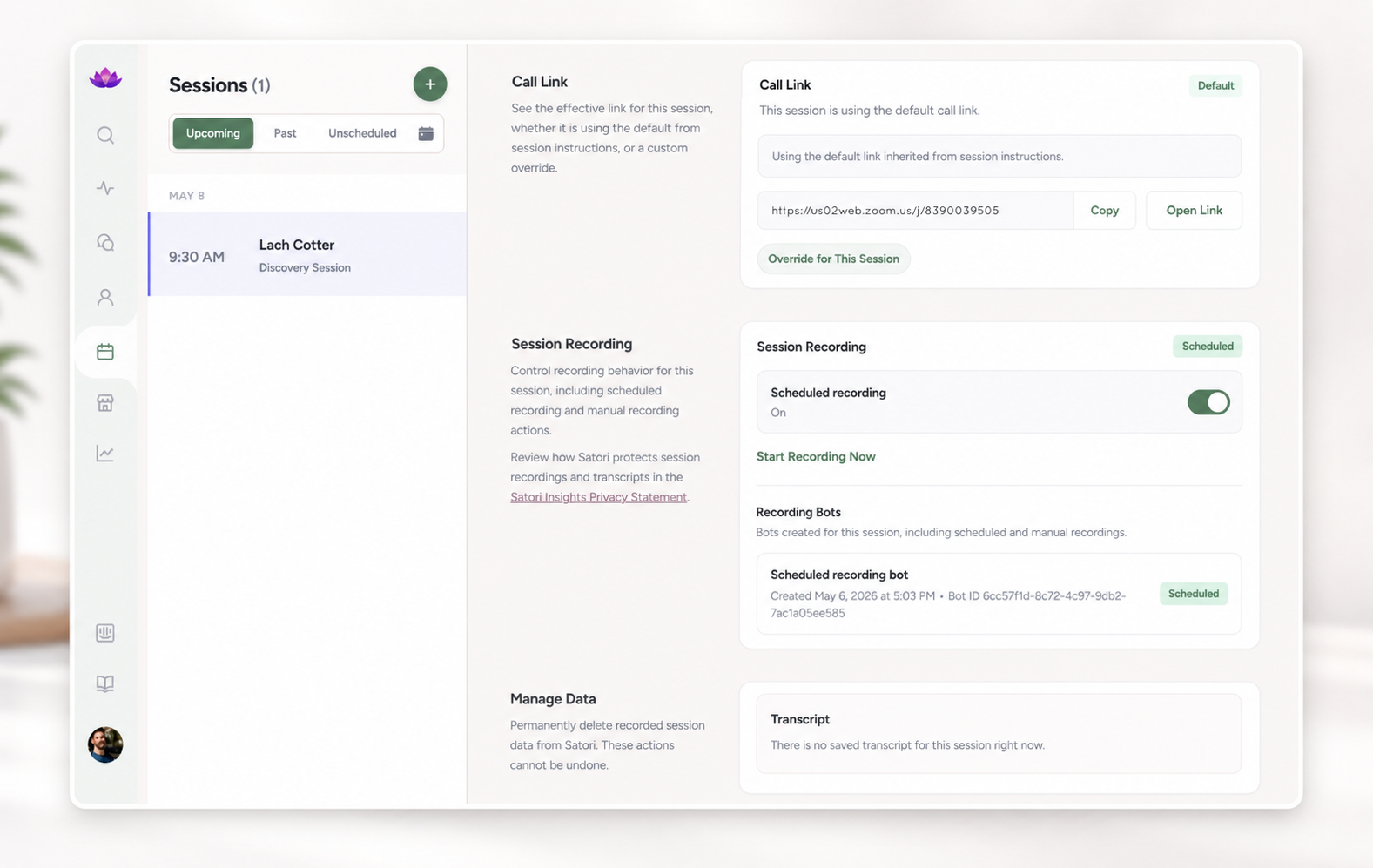
If you need the bot to join before the scheduled start time, click Start Recording Now to send a notetaker into the call immediately. This is optional. In most cases, if your session is scheduled correctly and recording is turned on, you do not need to do anything else.
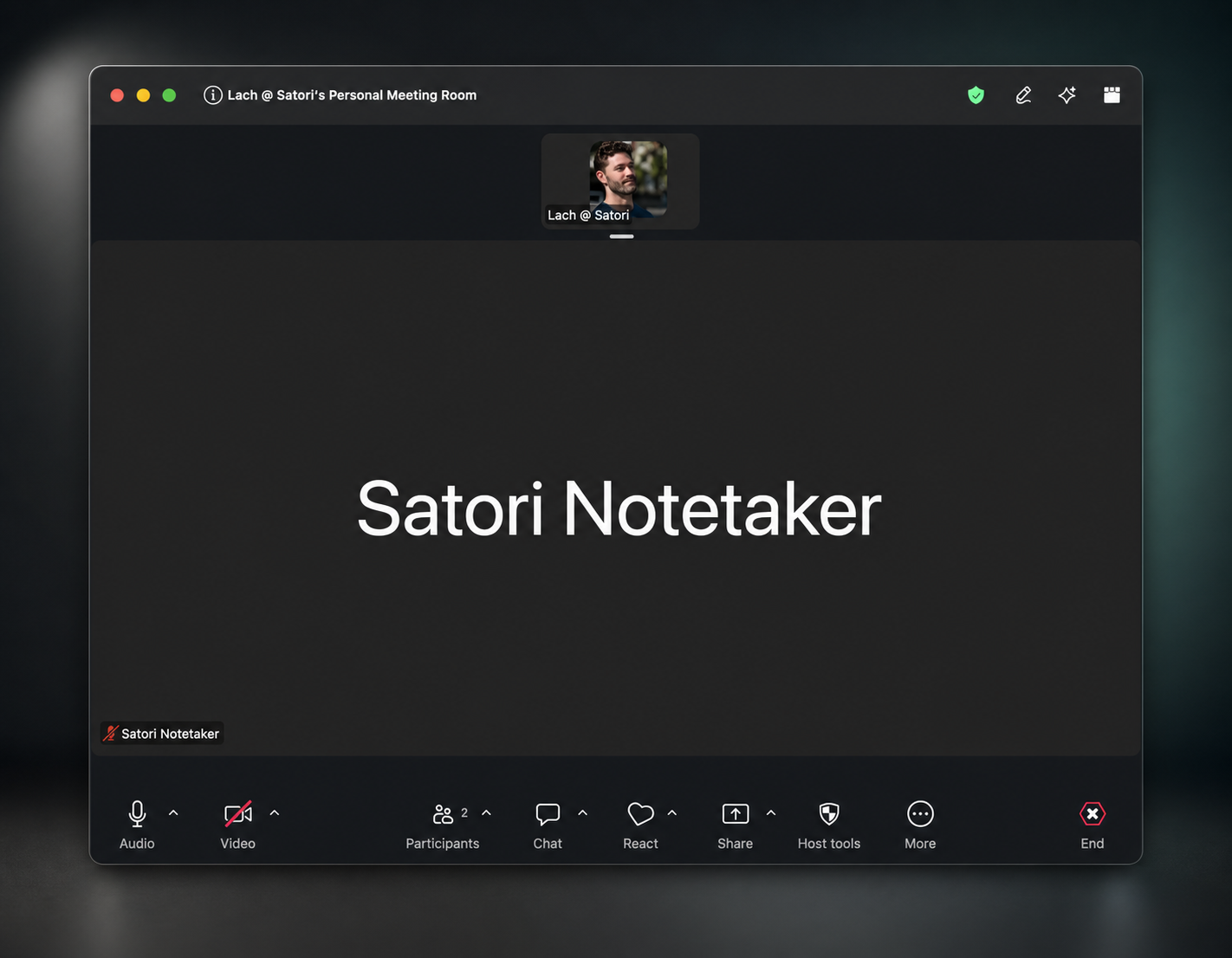
When it is time for the session, open the Zoom link and start the call as normal. At the scheduled time, the Satori notetaker bot will join the meeting automatically.
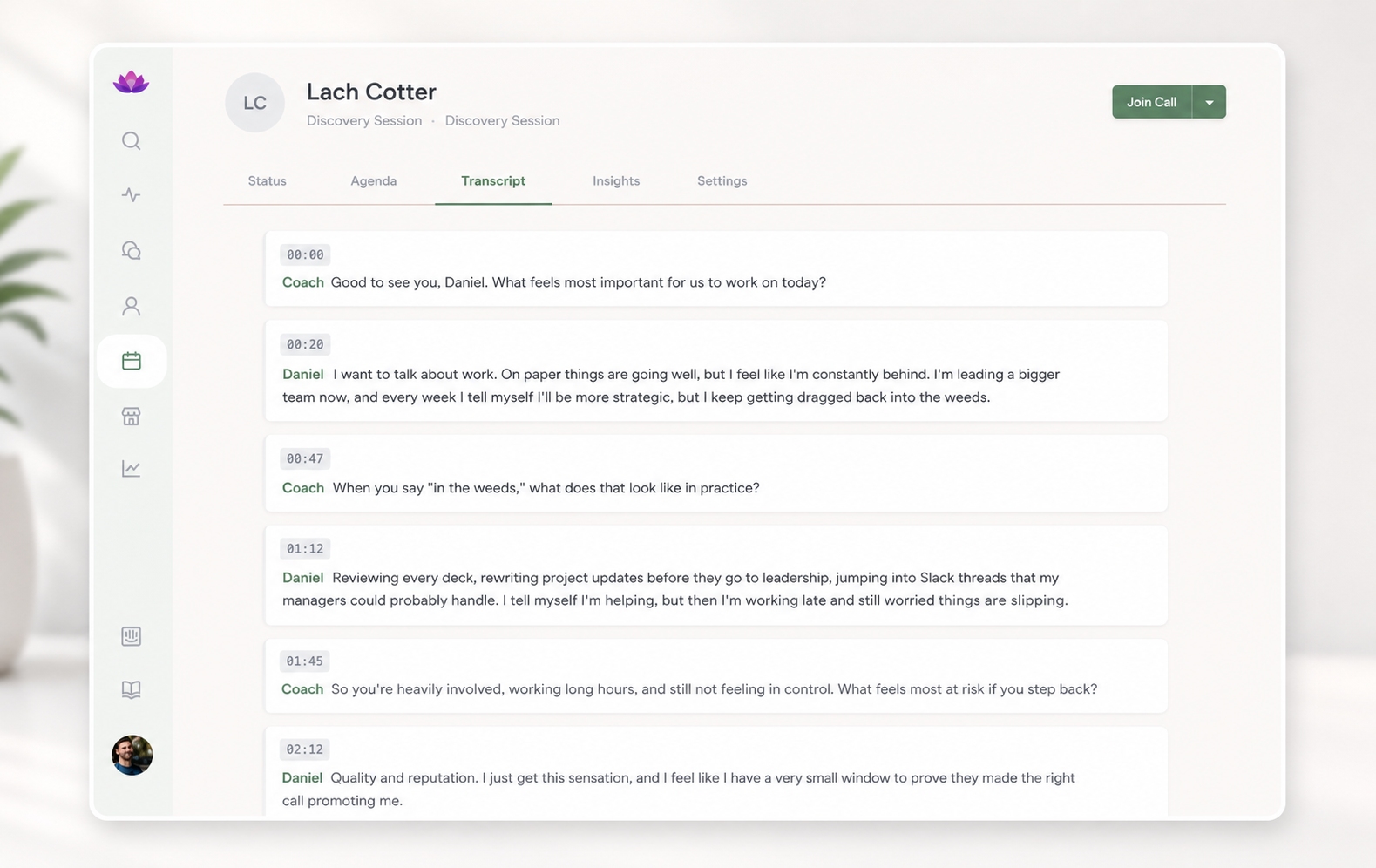
After the call ends, Satori processes the recording and then displays the conversation on the Transcript tab. This gives you a clean, timestamped record of what was discussed in the session.
Depending on the length of the session, this may take a little time to appear, so do not expect the transcript to be available instantly the moment the call ends.
After the transcript is processed, Satori analyzes the session and displays an Insights summary on the Insights tab. This helps you quickly review the main themes, key patterns, and useful coaching follow-ups from the conversation.
Insights may appear shortly after the transcript is ready, so it is normal for analysis to take a little longer than the transcript itself.
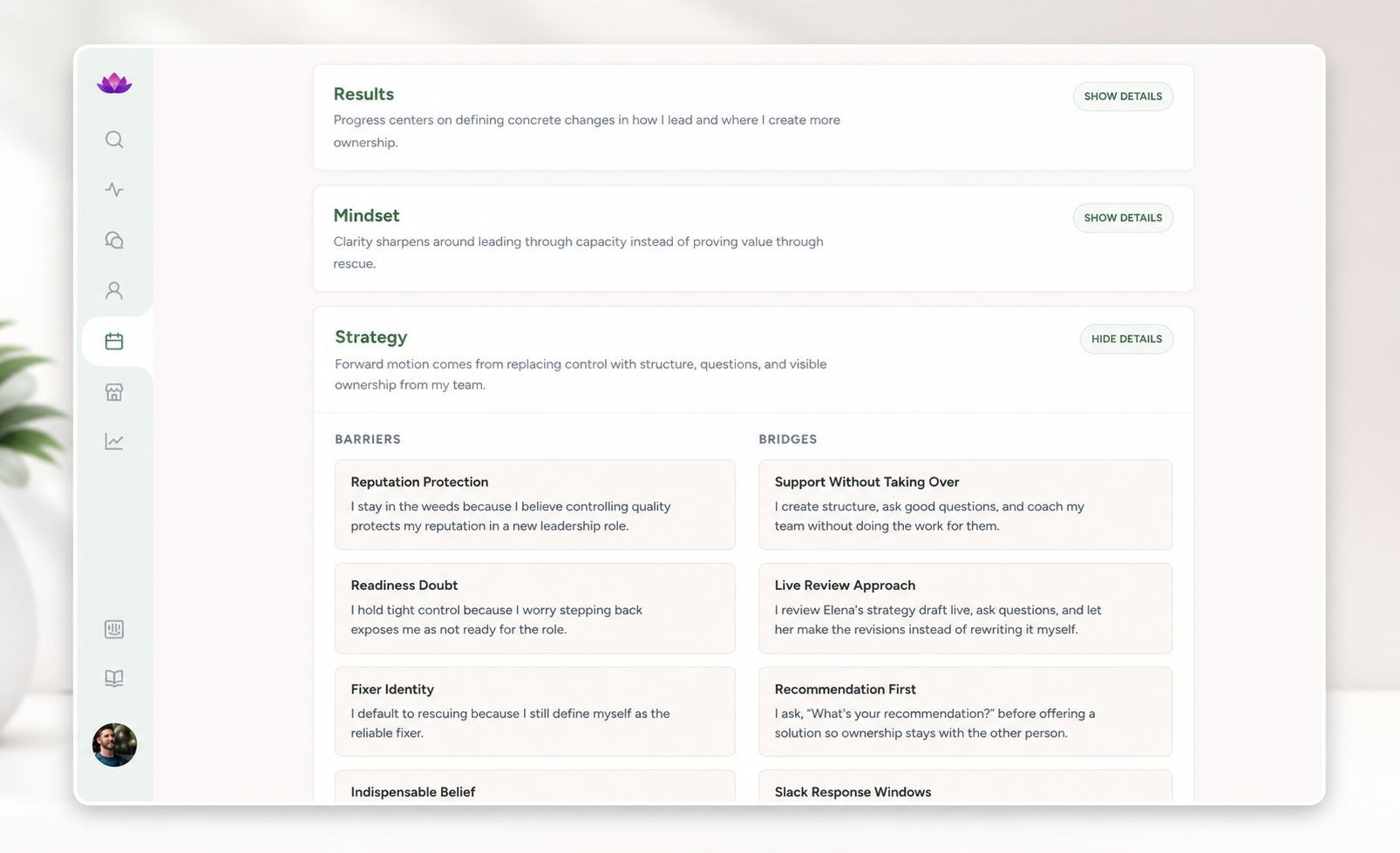
The workflow is simple:
You have full control over your session data and can manage or delete transcript and insight data at any time.
For more detail on how Satori handles meeting data, transcripts, AI-powered analysis, retention, and user data rights, see the Satori Privacy Policy.
If you are unsure which meeting link Satori will use, it checks in this order:
In practice:
No. In most cases, turning on Session Recording is enough. Satori will schedule the notetaker to join automatically at the session start time.
Use Start Recording Now when you want the bot to join immediately, for example:
Satori uses the call link that is current when the bot is scheduled.
If you change the call link after that point, you need to reschedule the bot so it picks up the new link.
No. You do not need to keep Satori open while the call is being recorded. The notetaker records to the cloud, so once the session is configured correctly and the bot has joined the meeting, the recording can continue without Satori staying open on your screen.
The transcript appears after the call has ended and the recording has been processed. Insights appear after the transcript is ready and Satori has finished analyzing the session.
Depending on the session length, both steps may take a little time, and Insights may appear later than the transcript.

See how successful coaching businesses work from the inside out.
Get the models, mindsets and practices taking coaches from their first clients to 6-figures and beyond.
Sign Up Here